How to Set Up IPTV on Your
Avov TV Device
Master IPTV streaming on Avov TV with our step-by-step guide. Access thousands of channels in minutes with optimal configuration.
Setting up IPTV on your Avov TV is a straightforward process that unlocks access to thousands of live TV channels, movies, and on-demand entertainment content. This comprehensive guide walks you through every step needed to configure your IPTV service, from accessing the app store to entering your portal details. With a modern streaming interface and seamless IPTV streaming capabilities, you'll be ready to enjoy your favorite shows in minutes.
Why Choose Avov TV Online for IPTV Streaming?
Many users love the Avov TV Online streaming device for its smooth delivery of IPTV services and reliable performance. Although setting up IPTV on Avov TV Online is relatively simple, following the correct steps guarantees a flawless IPTV streaming experience. This manual provides everything you need to successfully configure your IPTV on your Avov TV Online equipment.
Installation Guide
Connect Your Avov TV Online Device
Before you begin your IPTV setup, ensure that your Avov TV Online device is powered on and correctly connected to your television set. Verify that you have a stable internet connection—either Wi-Fi or Ethernet—as this is essential for uninterrupted IPTV streaming and channel loading.
Access the Market App Store
To set up IPTV on your Avov TV Online, navigate to the Market app store. This is where you'll find and download the software required for IPTV streaming on your device.
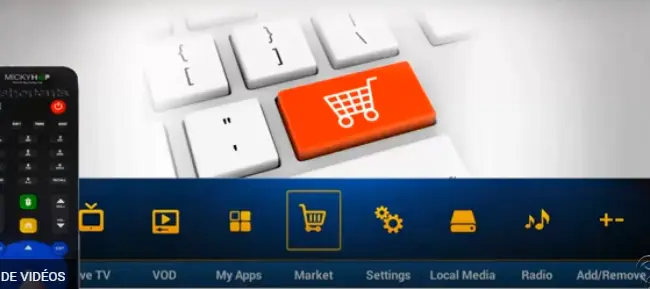
Download and Install the TVOnline IPTV App
Look for the TVOnline app in the Market Store—this is the official IPTV app for Avov products. Download and install the application onto your device to begin your IPTV configuration.
Launch the TVOnline IPTV Application
Once you've installed the TVOnline app, open it to begin the IPTV setup process. The application will now ask for your IPTV subscription information, so have your portal URL ready.
Enter Your IPTV Provider Portal Details
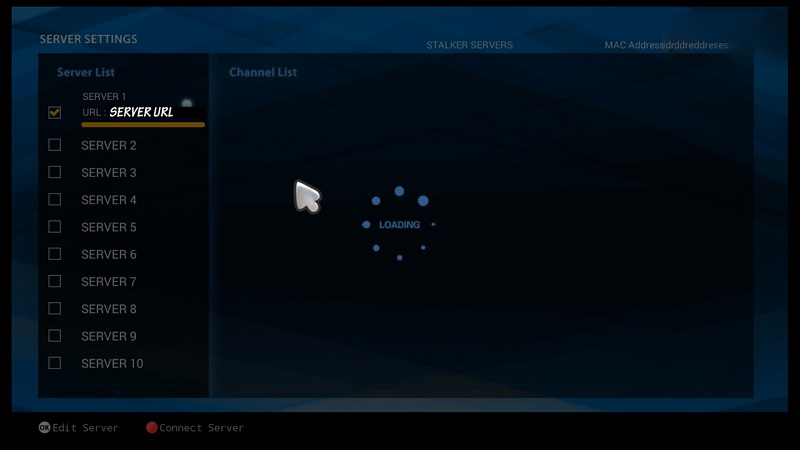
The next step in configuring IPTV on your Avov TV Online is entering your portal credentials. You should use the Portal URL provided by your IPTV service provider. This URL is what connects your Avov TV Online device to the IPTV server.
Follow these steps:
- Open the TVOnline application
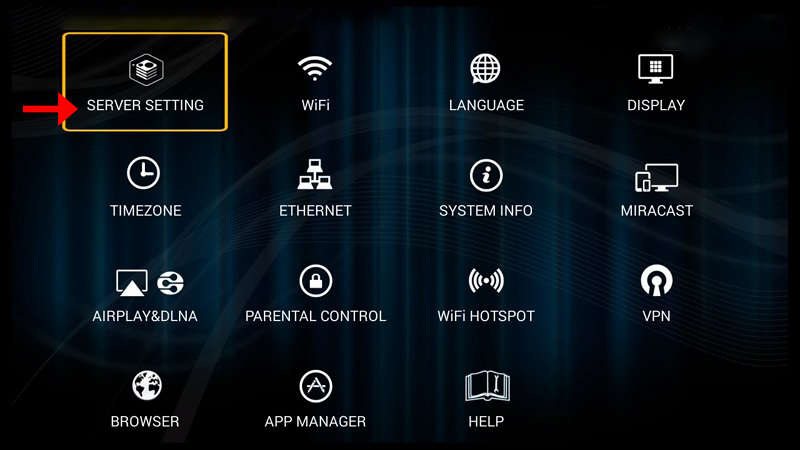
- Look for the Settings option in the menu
- Select Portal Configuration or Server Configuration
Enter the Portal URL that your IPTV provider has given you
Make sure you input this information accurately (http://...) to avoid connection issues.
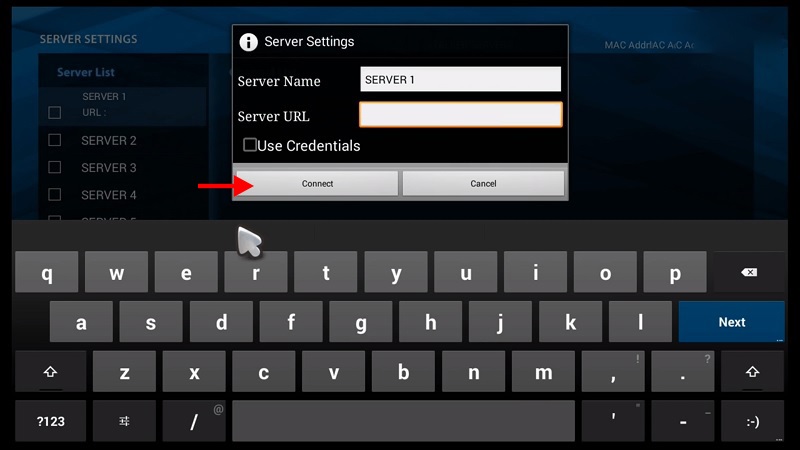
Save your settings
Restart and Start Streaming
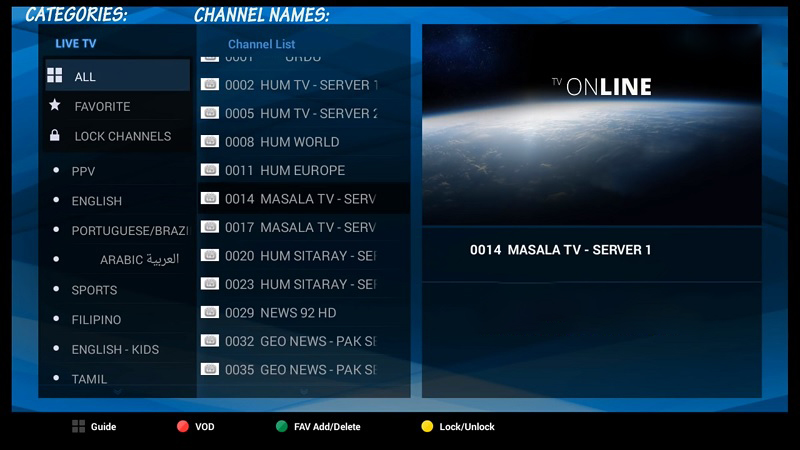
Restart the TVOnline application to apply your new settings. If you've entered the correct Portal URL and your IPTV subscription is active, your channels should load properly. You can now browse through all the available IPTV channels and start enjoying your entertainment.
Troubleshooting
❓ Why aren't my IPTV channels loading?
Check the following:
- You have entered the correct Portal URL provided by your IPTV service provider
- Your internet connection is stable and functioning properly
- Your IPTV subscription is currently active and not expired
❓ Do I need a VPN?
Using a VPN is recommended if you experience geo-restrictions or notice ISP throttling issues affecting your IPTV streaming speed and quality.
Ready to Watch?
By following this comprehensive guide, you can successfully set up IPTV on your Avov TV Online device. Whether you're streaming live TV, movies, or on-demand content, your Avov TV Online is now fully configured.
Explore More Tutorials