How to Install IPTV on
Google TV
Simple and straightforward IPTV installation on Google TV. Sideload apps and enable streaming in minutes.
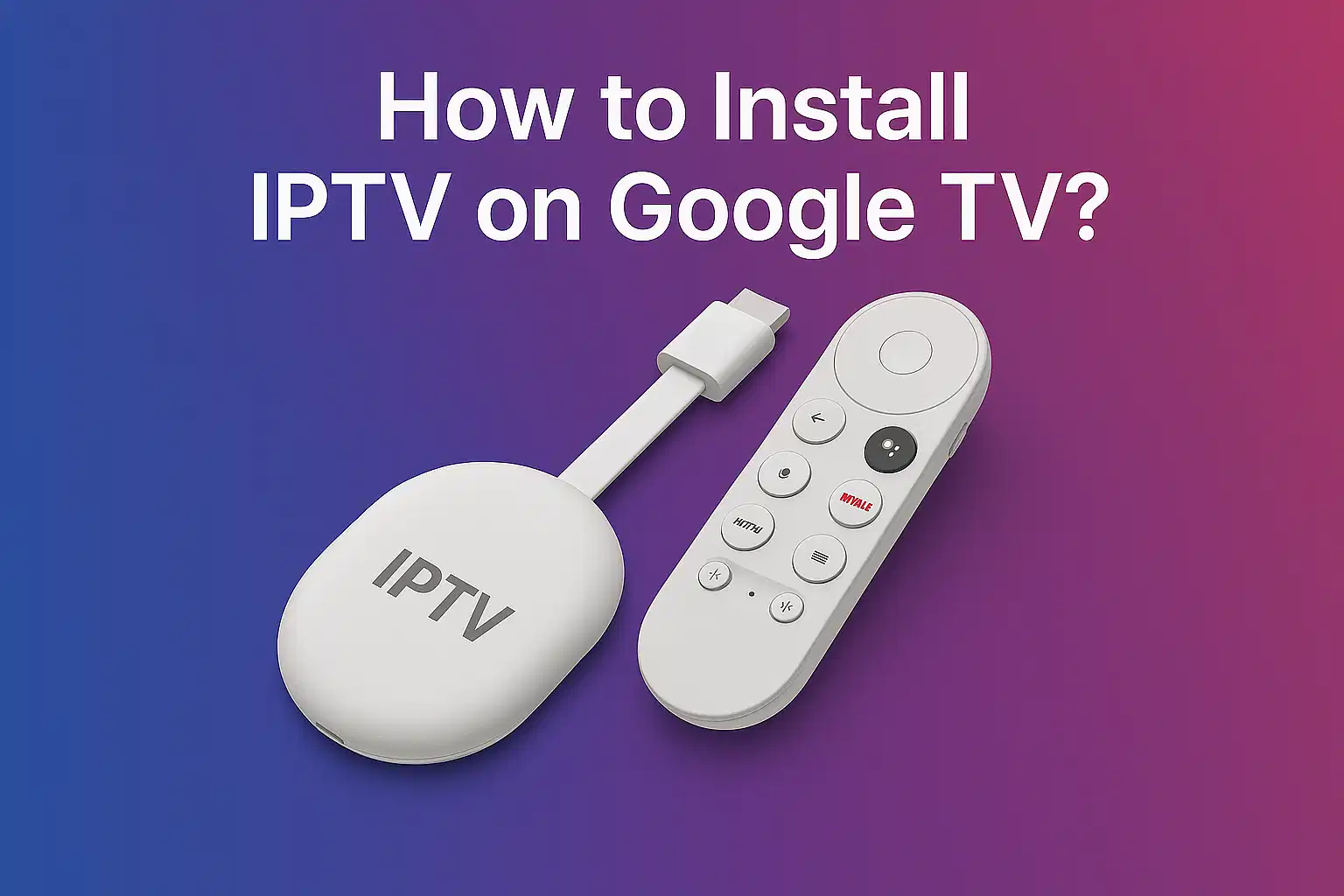
Installing IPTV on Google TV is simple and straightforward, even if your preferred IPTV app isn't available in the Play Store. This comprehensive guide highlights the process of sideloading IPTV apps using a downloader tool, enabling unknown sources, and manually installing the APK file. Whether you're using GSE Smart IPTV, Smart IPTV, or another IPTV player, this guide is your complete starting point to unlock seamless IPTV streaming on your Google TV device.
How to Get IPTV on Google TV: Easy Setup Guide
With Google TV, an IPTV subscription allows you to conveniently access thousands of channels, films, and TV shows directly on your screen. Setting up IPTV on Google TV is a straightforward operation whether you have a built-in Google TV unit or a Chromecast with Google TV. With just a few simple steps, follow this tutorial to enable your IPTV service on Google TV and start streaming immediately.
Method 1: GSE Smart IPTV
Adding your IPTV playlist to GSE Smart IPTV is the quickest way to get started with IPTV streaming on Google TV. Follow these steps:
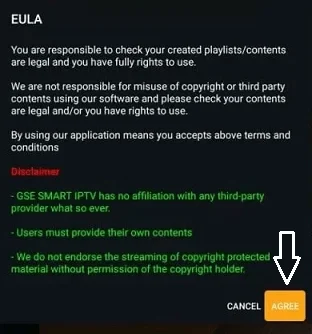
Open GSE Smart IPTV and Accept Terms
Open the GSE Smart IPTV app on your Google TV and tap "Agree" to accept the terms and conditions.
Add Your M3U URL
To configure your IPTV service, go to "Remote Playlist", then select "Add M3U URL" and enter the M3U link provided by your IPTV provider. The M3U URL is essential for loading your channels into GSE Smart IPTV.
Configure Xtream Codes (If Applicable)
If your IPTV provider uses Xtream Codes instead of M3U URLs, choose the "Xtream Codes API" option and input the necessary authentication details provided by your service provider.
Set Up the EPG Program Guide
For an enhanced viewing experience with IPTV channels, click on "EPG Program Guide" and follow the on-screen prompts to set it up. The EPG will display program schedules for your IPTV channels.
Start Streaming
That's it—you're all set to start watching your favorite IPTV channels and content on Google TV!
Method 2: Sideloading APKs
If your chosen IPTV player or IPTV app isn't available on the Google TV app store, you can still install it by sideloading the APK file manually. This method works for GSE Smart IPTV, Smart IPTV, and other IPTV applications for Google TV.
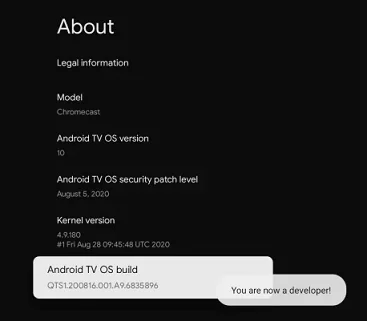
Enable Developer Mode on Google TV
To begin the IPTV sideloading process, first enable Developer Mode:
- Click your profile icon in the top right corner
- Navigate to Settings > System > About
- Scroll down to "Android TV OS Build" and tap it multiple times (usually 7-10 times) until you see a message confirming that developer mode is enabled
Install a Downloader App
Use the search feature from the menu bar to install a downloader tool:
- Click the Search option from the main menu bar
- Search for "Downloader" and install the application
- This tool will help you download the IPTV APK file directly to your device
Enable Installation from Unknown Sources
For IPTV sideloading to work, you must allow your device to install apps from unknown sources:
- Navigate to Settings > Apps > Security & Restrictions
- Select "Unknown Sources" and enable it for the Downloader app
- This permission allows you to install the IPTV APK manually
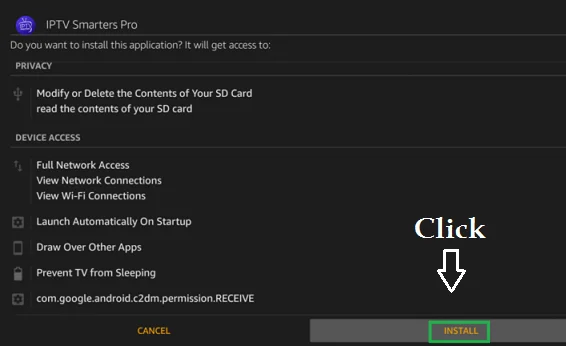
Download and Install the IPTV APK
Now you're ready to sideload your IPTV application:
- Open the Downloader app on your Google TV
- In the URL field, enter the APK link for GSE Smart IPTV or your preferred IPTV player
- Press "Go" to download the file
- Once downloaded, click "Install" to complete the IPTV installation
Troubleshooting
❓ Where do I find the M3U URL?
Upon signing up for an IPTV service, your provider will supply you with either an M3U URL or Xtream Codes credentials. Check your email confirmation. The M3U link is typically labeled as "Playlist URL".
❓ Can I install multiple IPTV apps?
Yes! Google TV allows you to install several IPTV applications simultaneously. You can have multiple players like GSE Smart IPTV, Smart IPTV, and others all installed.
❓ Why isn't my subscription working?
Verify the following:
- Your subscription is active and not expired
- M3U URL or Xtream Codes are entered correctly (case-sensitive)
- Internet connection is stable
- Try restarting the app
❓ Is sideloading safe?
Sideloading is safe when you download APK files from trusted sources. Always verify the authenticity of the app you're downloading.
Ready to Watch?
Whether you choose to add your IPTV playlist directly or sideload your preferred application, setting up IPTV on Google TV is quick and easy. Enjoy seamless streaming today!
Explore More Tutorials